Jamf Pro Managed Software Updates provide a centralized, transparent, and scalable approach to OS patching across macOS, iOS, and Apple platforms. Specifically keeping Apple devices up to date is critical for security, stability, and compliance — and Jamf Pro delivers predictable enforcement through both traditional MDM commands and Declarative Device Management (DDM).
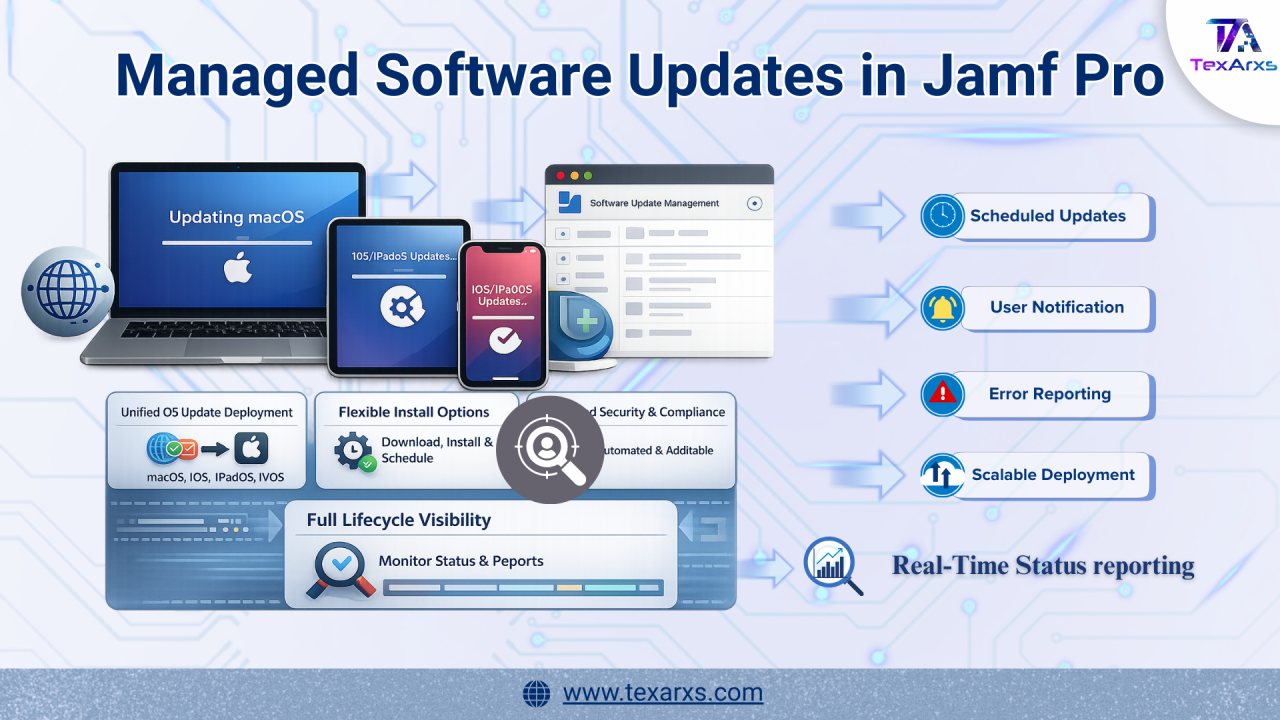
🧩 What Are Managed Software Updates?
Essentially, Managed Software Updates offer a single administrative interface to create and deploy OS update plans across Apple platforms, including:
- macOS computers
- iOS, iPadOS, and tvOS devices
⚠️ Note: visionOS and watchOS updates are not currently supported. All OS updates require a device restart, regardless of the selected install action.
🖥️ macOS Updates and Declarative Device Management (DDM)
Futhermore, administrators can deploy macOS updates to smart or static computer groups, removing the need for manual inventory searches or device-by-device actions.
Key Requirements
- macOS 11 or later
- Supervised devices or PreStage-enrolled computers
- Apple silicon Macs require an escrowed Bootstrap Token to enable fully automated updates without user interaction
⚙️ macOS Install Actions Available
Administrators can choose from multiple install behaviors depending on organizational needs:
- Download only – Update downloads and waits for user installation
- Download and install – Automatic installation when conditions are met
- Download, install, and allow deferral – Users may defer (minor updates only)
- Download and schedule to install – Uses declarative device management (macOS 14+)
- Download, install, and restart – Forces restart after a countdown (use with caution)
As a result. declarative device management ensures updates are enforced at the scheduled time based on the device’s local time and reported proactively back to Jamf Pro.
✅ Why DDM Matters for Software Updates
Declarative Device Management introduces a modern, device-driven model for enforcing software updates across macOS, iOS, and iPadOS. Instead DDM defines desired state, allowing devices to autonomously work toward compliance.
🔐 Predictable and Enforced Update Compliance
Administrators can define exact enforcement dates and times for OS updates. If users do not install the update before the enforcement deadline:
- macOS safely quits open applications and restarts the device if required
- iOS and iPadOS prompt users to enter their passcode (if configured)
Consequently, updates are applied consistently, eliminating indefinite deferrals.
👤 Improved User Awareness and Transparency
DDM enhances the end-user experience by providing:
- Native update notifications in System Settings (macOS) or Settings (iOS/iPadOS)
- Increasing notification frequency as the enforcement date approaches
- Automatic override of Do Not Disturb 24 hours before enforcement, ensuring visibility
Therefore, users are informed early and clearly, while IT maintains enforcement control.
🕒 Device-Local Scheduling
Moreover,Jamf enforces updates are using the device’s local time, ensuring precise execution regardless of time zones, network latency, or server availability.
📊 Enhanced Visibility with Declarative Status Reporting
Administrators gain real-time insight into update progress, including states such as:
- Waiting to download
- Downloading
- Installing
- Unable to proceed
When issues occur, meaningful error reporting—such as low battery, insufficient storage, or offline status—enables faster troubleshooting and remediation.
🧩 Flexible Targeting and Communication
DDM allows administrators to:
- Define exact OS versions using TargetOSVersion and TargetBuildVersion
- Specify enforcement timing with TargetLocalDateTime
- Provide user-facing context through a DetailsURL, linking to internal documentation or guidance
This combines technical enforcement with clear organizational communication.
🚀 Reduced Server Load and Increased Reliability
Additionally, by shifting execution logic to the device:
- Devices proactively report status instead of relying on repeated MDM polling
- Update workflows scale efficiently across large fleets
- Overall reliability improves compared to traditional command-based approaches
📱 Updating iOS, iPadOS, and tvOS
Similarly, Managed software updates support mobile devices enrolled via PreStage or supervision.
Supported platforms:
- iOS 14+
- iPadOS 14+
- tvOS 14+
Supported install actions:
- Download only
- Download and install
- Download and schedule to install (iOS/iPadOS 17+)
Due to Apple’s MDM framework, options like “install and restart” or “allow deferral” apply only to macOS, not mobile devices.
🧭 Jamf Blueprints and Software Updates
Jamf Blueprints include Software Update configuration, enabling organizations to:
- Standardize OS update behavior during device enrollment
- Apply consistent update strategies across fleets
- Align update enforcement with security and compliance baselines
Ultimately, Blueprints establish a known, compliant starting state, while Managed Software Updates maintain compliance throughout the device lifecycle.
👤 End-User Experience
The user experience varies based on the selected install action:
- Some updates require user initiation or passcode entry
- Scheduled updates may install without user interaction
- Deferred updates install automatically once deferral limits are reached
- Forced restarts occur only when explicitly configured
This flexibility allows IT teams to balance security enforcement with user productivity.
🎯 Why Managed Software Updates Matter
In conclusion, when implemented correctly, Managed Software Updates form the foundation of a reliable, scalable, and auditable Apple OS update strategy, offering:
- Centralized control
- Declarative and MDM-based enforcement
- Reduced administrative overhead
- Clear and predictable end-user behavior
- Full lifecycle visibility and compliance assurance
🔧 How to Implement Managed Software Updates in Jamf Pro
🖥️ Updating macOS Using Managed Software Updates
1️⃣ Step 1: Enable Managed Software Updates
- Log in to Jamf Pro
- Navigate to Computers → Software Updates
- If this is your first time, click Enable
⚠️ Important: Enabling Managed Software Updates clears previously sent software update commands from Jamf Pro.
- These updates can be redeployed using Managed Software Updates
- Mass Action software update commands are disabled once this feature is enabled
2️⃣ Step 2: Select Target Computer Groups
- Click Computer Group
- Select one or more Smart Groups or Static Groups
- Click Update Selected
Updates apply only to devices in the group at the time of deployment
Choose the Right Install Action for macOS
3️⃣ Step 3: Choose the Install Action
Select the install behavior that fits your organization’s update strategy:
- Download only • Downloads the update • User installs manually
- Download and install • Automatically installs when conditions are met
- Download, install, and allow deferral • Users can defer the update • ⚠️ Supported only for minor updates
- Download and schedule to install (DDM) • Available for macOS 14+ • Supported only on Jamf Standard Cloud-hosted or Jamf Premium Cloud-hosted • Enforces updates using Declarative Device Management • Update runs based on device local time • Device proactively reports status to Jamf Pro
⚠️ Notes for DDM scheduling:
- Not supported in Jamf Premium Cloud Plus
- Applies only to devices in scope at deployment time
- To revoke a declaration, toggle Managed Software Updates OFF and ON
🔹 Download, install, and restart ⚠️ Use with caution — device restarts automatically and may cause data loss
Select Your Target macOS Version
4️⃣ Step 4: Select Target macOS Version
Choose one option:
- Latest version based on device eligibility
- Latest major version
- Latest minor version
- Specific version (selected from list)
📌 macOS uses semantic versioning
5️⃣ Step 5: Apply and Monitor
- Click Apply
- The update plan is sent to the selected groups
- To track status: Open a device record Go to Management → Operating System
📱 Updating iOS, iPadOS & tvOS Using Managed Software Updates
Requirements
- iOS 14+, iPadOS 14+, or tvOS 14+
- Devices must be Supervised or PreStage Enrolled
1️⃣ Step 1: Enable Managed Software Updates
- Go to Devices → Software Updates
- Click Enable (first-time only)
⚠️ Same cleanup behavior applies as macOS (previous commands removed)
2️⃣ Step 2: Select Mobile Device Groups
- Click Mobile Device Group
- Choose Smart or Static Groups
- Click Update Selected
3️⃣ Step 3: Select Install Action
Available options:
- Download only
- Download and install
- Download and schedule to install (DDM) • Requires iOS 17 or iPadOS 17 • tvOS, visionOS, and watchOS not supported • Enforced using device local time • Device proactively reports status
⚠️ Important platform behavior:
- Download, install and restart is not supported on mobile devices
- Allow deferral is macOS only
- Mobile devices automatically restart after install if required
4️⃣ Step 4: Select Target OS Version
Choose:
- Latest version based on device eligibility
- Latest major version
- Latest minor version
- Specific version
📌 iOS, iPadOS, and tvOS use semantic versioning
5️⃣ Step 5: Apply the Update
- Click Apply
- Update plan is sent to selected devices
🛠 Deploying Managed Software Updates Using Jamf Blueprints
🔹Log in to Jamf Pro and navigate to Blueprints.
🔹Create a new blueprint (for example: Software Update Settings).
🔹In the Blueprint editor, locate Software Update Settings and add it to the Declaration group.
🔹Configure the Software Update Settings component:
- Enable standard users to install Apple software updates
- Enable user notifications for updates scheduled by declarations
🔹In the Install Actions configuration:
- Set Automatic downloads of available OS updates to Always
- Set Automatic installs of available updates to Always
- Set Automatic installs of available security updates to Always
🔹 In the Rapid Security Response section:
- Allow Rapid Security Response installation
- Allow Rapid Security Response removal
🔹Save the configuration and assign a scope using a static or smart computer group.
🔹Deploy the Blueprint to enforce the declared software update behavior on scoped macOS devices.
🔍 Validation on Managed Devices
Once deployed:
- The configuration appears under Device Declarations in the MDM profile
- Update behavior is visible in System Settings → General → Software Update
- Automatic update and Rapid Security Response settings reflect the enforced state
This ensures transparency for both IT administrators and end users.
📈 Final Thoughts
Managed Software Updates, combined with Declarative Device Management, redefine how Apple OS updates are enforced—making compliance predictable, scalable, and visible. For organizations managing Apple devices at scale, this is the modern standard for OS patching.