With the release of macOS 26 Tahoe, Apple has introduced one of the most impactful features for IT admins and power users: the ability to unlock a FileVault-encrypted Mac remotely over SSH after a reboot.
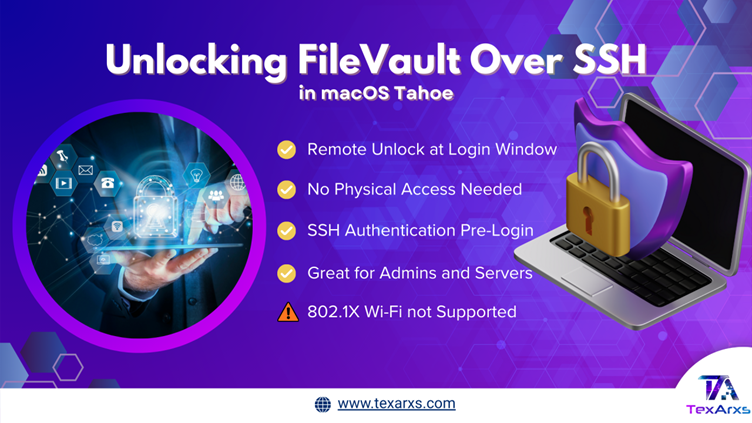
***Until now, FileVault presented a practical challenge. A rebooted Mac with FileVault enabled remained inaccessible until someone physically entered credentials at the login screen. For administrators managing headless Macs, CI/CD build servers, remote workstations, or enterprise fleets, this limitation caused downtime, delays, and costly workarounds like hardware KVMs.***
🔑 How It Works
Normally, when you enable FileVault, the system volume stays encrypted until a local account password is entered. Normally you cannot access SSH and configuration files until after login.
In macOS Tahoe, however, Apple has built a minimal SSH environment that runs even before FileVault is unlocked:
- First, connect to the Mac via SSH from another machine:

- Instead of a normal login, you’ll see: “This system is locked. To unlock it, use a local account name and password.”
- Enter the correct credentials.
- As a result, the system responds: “System successfully unlocked. You may now use SSH to authenticate normally.
At this point, the Mac:
The Mac mounts the encrypted data volume. Next, it restarts dependent services. Then SSH returns to standard accessibility. Finally, the display moves to the login window.
⚠️ Important Limitations
However, this feature comes with some boundaries, admins need to know:
- IP Address Required – You must know the Mac’s IP before attempting SSH.
- 802.1X Wi-Fi Not Supported – Specifically, certificates stored in the system keychain aren’t accessible until FileVault is unlocked, this restricts use in enterprise Wi-Fi setups.
- Temporary Disconnect – SSH will briefly drop after unlocking while the system reinitializes services.
🔒 Security: Lockout Protection
Additionally, Apple has layered in protections against brute-force attempts.
- If you repeatedly enter the wrong password, the system responds with:
- The system temporarily blocks further attempts, forcing you to wait before retrying.
- Once the lockout expires, you can try correct credentials again.
💡 Why This Matters
Therefore, the significance of this feature varies across different use cases:
✔️ IT Admins & Enterprises – IT teams can remediate devices remotely without physical access, especially for headless Macs or systems hosted in data centers.
✔️ Remote Workers – Remote workers can recover from reboots without being on-site.
✔️ Secure Environments – This strengthens device management while keeping FileVault’s encryption intact.
✔️ For teams running Mac minis as CI/CD servers, render farms, or media centers, this unlocks (literally) a new era of hands-off, fully remote management.
As one developer put it:
“I can now have a fully remote Mac mini server with auto-reboot on power outage without needing to physically log in.”
🚀 The Road Ahead
In conclusion, this feature goes beyond convenience—it signals a shift. Apple is acknowledging the needs of enterprise admins, DevOps Engineers, and remote professionals who rely on Macs in always-on environments.
Next steps to watch:
- Integration with MDM platforms like Jamf for automated workflows
- Apple will support for key-based authentication in future versions
- Refined enterprise tooling around lockout policies and audit logging
📌 Takeaways:
Unlocking FileVault over SSH in macOS Tahoe removes a major roadblock in remote Mac management. It’s a small addition with massive implications, replacing previously complex workarounds into a single command. For IT admins, DevOps engineers, and organizations relying on Macs in critical workflows, this is more than a quality-of-life upgrade—it’s a strategic shift in how IT teams deploy and maintain macOS at scale.